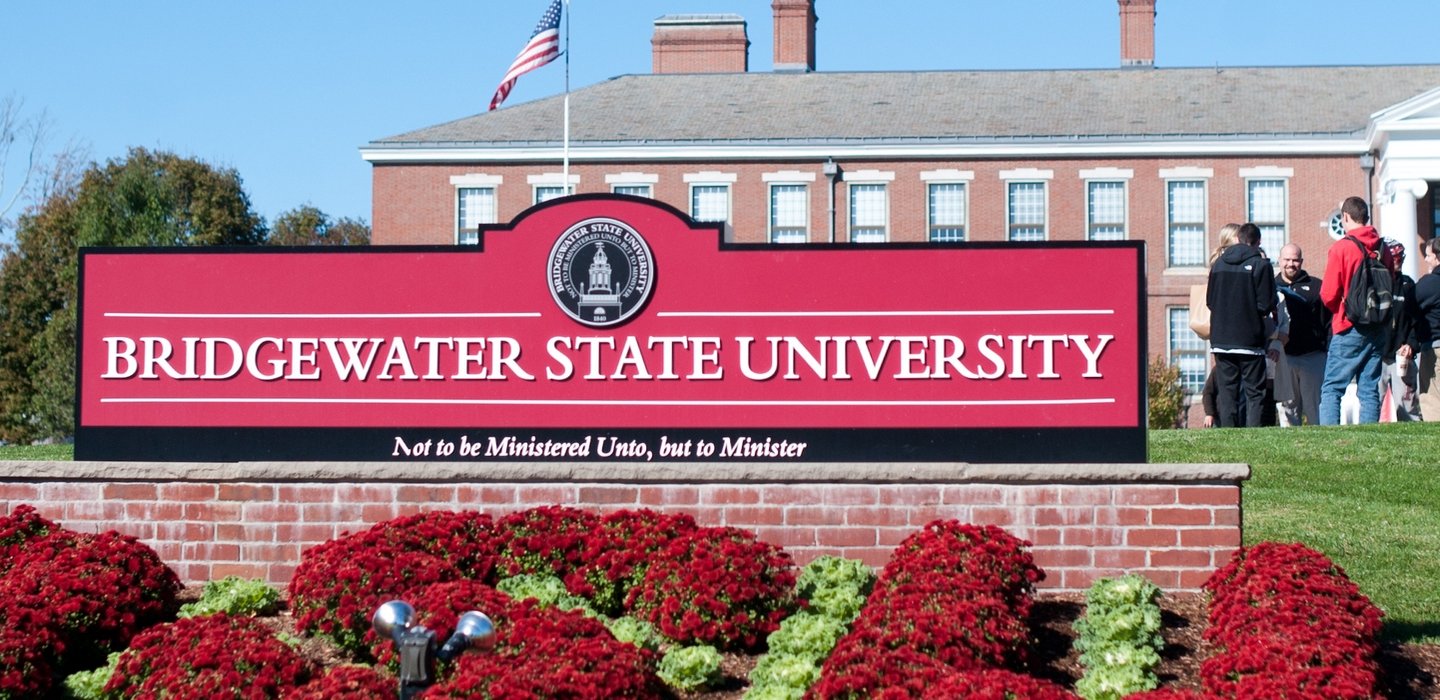
Coming this fall, Bridgewater State University and NGPF will be offering a culminating experience for the NGPF Literacy Education series entitled, Advancing Financial Literacy for Educators.
Course Description
In this culminating 8 week graduate-level course, educators will synthesize and extend their learning from prior coursework and the NGPF FinCamp experience to design, implement, and evaluate high-impact financial literacy instruction. Emphasis will be placed on advocacy, leadership, innovation, and sustainability in financial education, with a focus on scaling effective practices within their sphere of influence. Through a capstone project, educators will create a comprehensive financial literacy initiative responsive to the diverse needs of their community. The course concludes with reflection on professional growth and the educator’s role as an advocate for advancing financial literacy education.
This course will run from September 7 through October 30, 2026 and will be hosted 100% asynchronously.
Registration Information
Step 1: Complete the Graduate Non-Degree Application
***If you took a summer FinCamp course, you can go directly to Step #4 with your BSU credentials
Students starting non-degree course(s) for the Fall 2026 term, should click here for the Graduate Non-Degree application (https://www.bridgew.edu/grad-non-degree).
**If you have taken a BSU course in the past year, then you do not need to refresh your Graduate Non-Degree Application and can proceed to step #4 to register.
Please contact Graduate Admissions (gradadmissions@bridgew.edu) with questions regarding the Graduate Non-Degree Application.
Step #2: Retrieve Your BEAR ID
Your BEAR ID is the 8-digit number emailed to you once your Graduate Non-Degree application has been processed by Graduate Admissions. You will need this to access many of the items below, so be sure to have it handy. If you have lost your acceptance letter or cannot remember it, the Office of Graduate Admissions can help. Write to GradAdmissions@bridgew.edu from the email address used to complete your Graduate Application for any help or questions during this step.
Step #3: Access and Use Your BSU Email account
Start to use your BSU email today! It was sent from BSU Accounts (BSUAccounts@bridgew.edu) to the personal email address provided in your application.
To access your email, use the link provided in the communication sent from IT. You can also access your email on the student portal by clicking on email from the left navigation bar.
IMPORTANT: Login to your BSU email with the default password. You will be prompted to set up MFA (Multi Factor Authentication) before resetting your password. View how to configure MFA.
All information is sent to your BSU email. Don’t miss important information: Be sure to check daily!
If you have not received your BSU email account information from BSU Accounts:
First, check your junk or spam folder. Contact IT support at 508.531.2555 or ITSupport@bridgew.edu and provide them with the following information.
- Bear ID (formerly Banner ID)
- Address
- Phone Number
- Date of Birth
Step# 4: Navigate to the Student Portal and Register for a course(s)
Students register for courses by navigating to the Student Portal, signing in using your BSU credentials, and going to the “Student” section of Infobear.
- Proceed to the BSU Student Portal by navigating to mybsu.bridgew.edu.
- Please click on the tile for “Registration and Planning” which says “OPEN REGISTRATION DASHBOARD”
- Next, you’ll be prompted to complete the “Student Financial Responsibility Agreement (SFRA)”.
- Once you’ve acknowledged the “Student Financial Responsibility Agreement (SFRA)”, you will click on the link at the bottom titled “Registration Planning – New”
- On the next page, you’ll click “Register for Classes” on the bottom right hand side of the page.
- To add a course section, click the “Enter CRNs” tab then enter the 5-digit CRN 93778 and click “Add to Summary”. To finalize your registration, click “Submit” in the bottom right corner of the “Summary” section. The class “Status” will change from “Pending” to “Registered” once you have successfully added the course.
*You may view a step-by-step video which will walk you through adding/registering for a class at BSU.
Additional registration related resources including PDF instructions may also be found on the Registrar’s Office page*
Paying your bill
Once you have successfully registered for your course, you should now pay your bill.
1. From being logged in to the infobear.bridgew.edu portal, click "Student" from the tab across the top, then "Student Accounts" and then "eBill" on the right-hand side
2. Click "Make Payment" again from the tabs on the top of the page and follow the prompts.
For more information on how to pay your bill, contact Student Accounts.
Student Accounts
Boyden Hall, Rm 107
131 Summer Street
Bridgewater, MA 02325
Getting your transcript
Bridgewater State University offers the convenience of E-Transcripts which can be requested 24/7 and be sent, electronically, anywhere in the world typically within an hour.
Once you receive confirmation that grades are available and transcripts can be requested, go to the Transcript Request Page to begin the process